Updating Software
Keep IPH Photobooth up to date with the latest features, improvements, and bug fixes.
Automatic Update Check
IPH Photobooth automatically checks for updates each time you launch the application. When a new version is available, you'll see a notification in the app for each component.
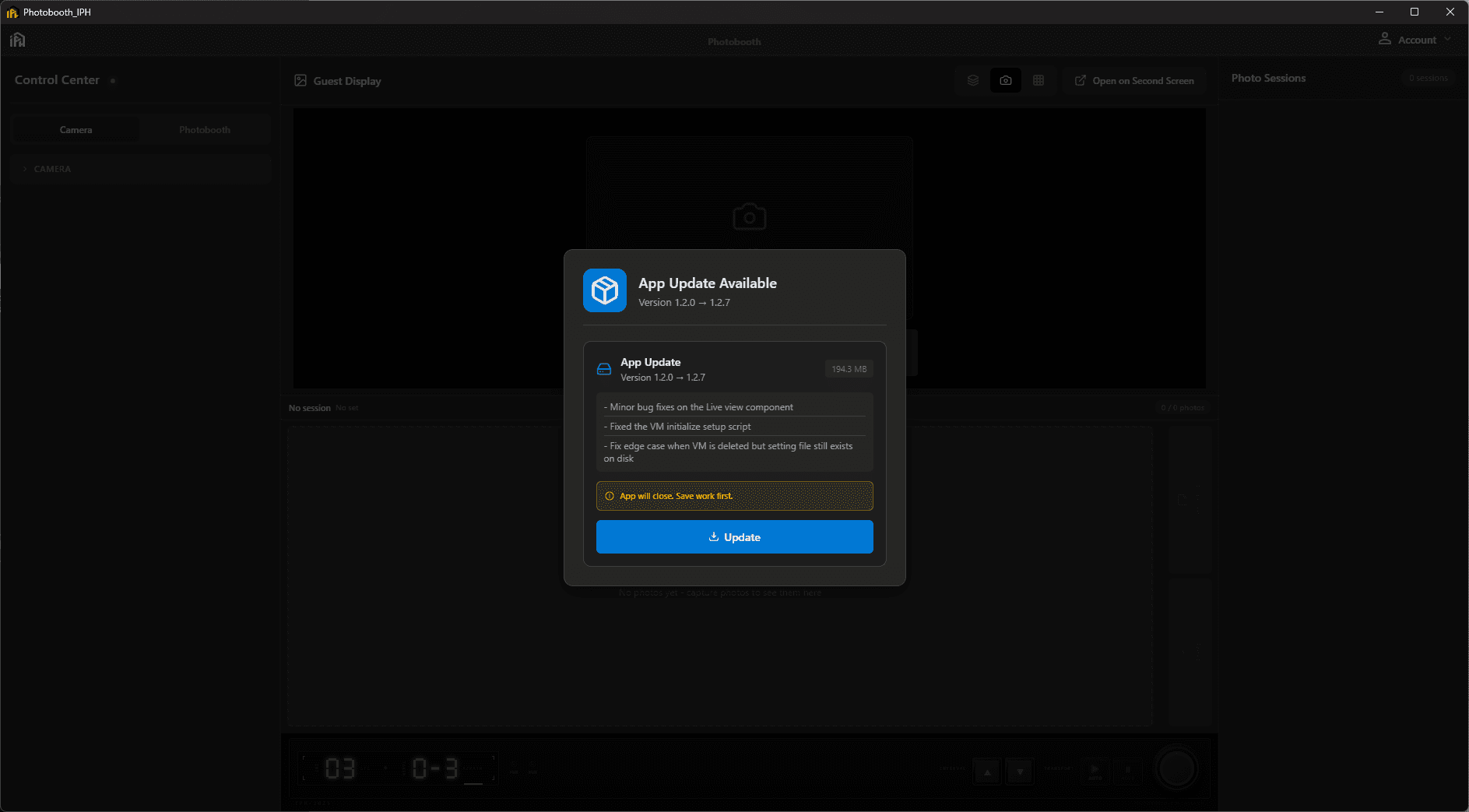
MSI update available notification
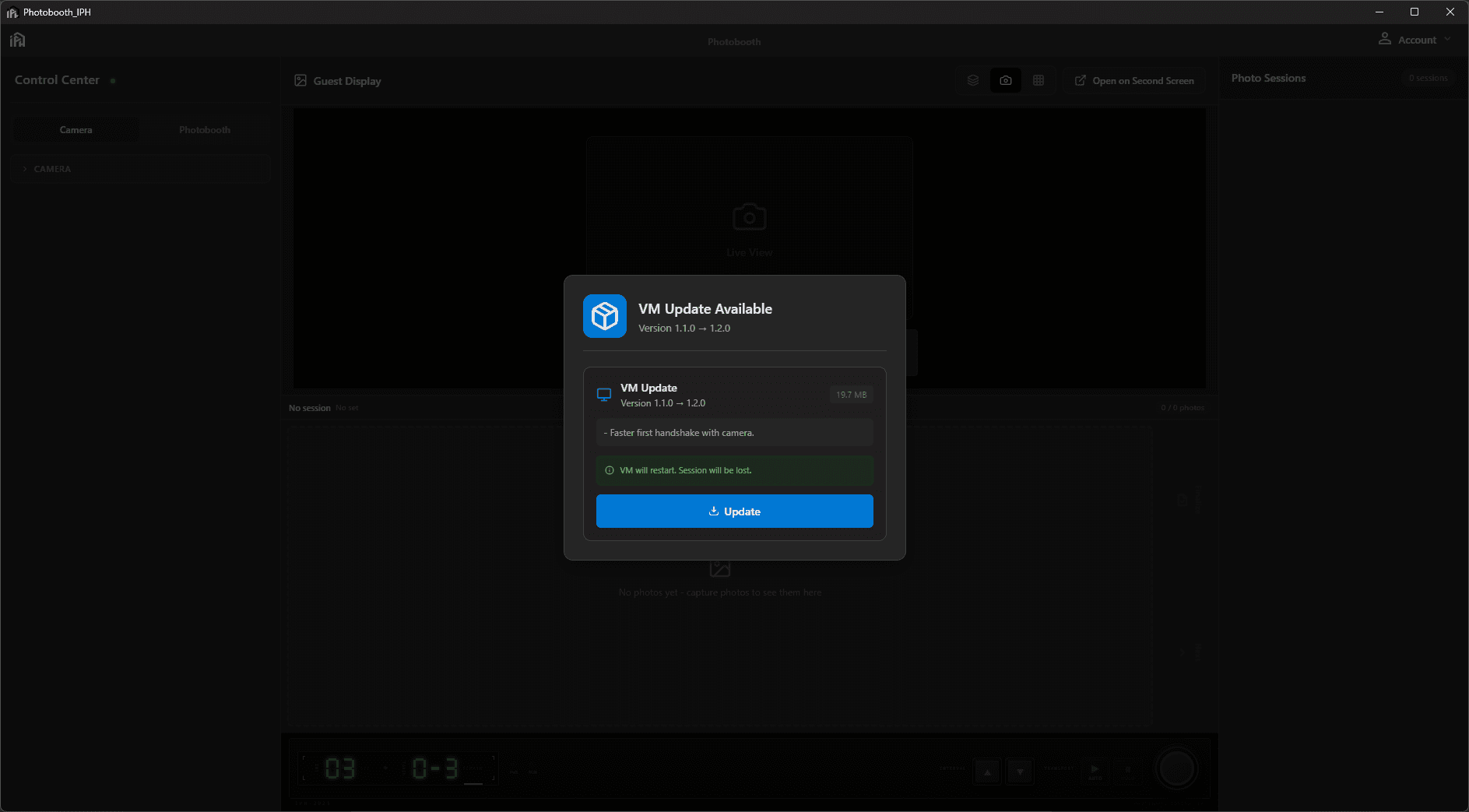
VM update available notification
Manual Update
Check for Updates in App
You can manually check for updates at any time through the app:
- 1Open IPH Photobooth
- 2Click on the IPH logo or press F1 to expand the top bar menu
- 3Click on About
- 4Click on Version
- 5Click on Check for Updates
- 6Click Update Now on the item you want to update
Download from Website
Alternatively, you can always download the latest version directly from our website:
Go to Download PageDownload & Install
Choose the update method you need and follow the steps below:
Step 1: Download the Update
Download the latest MSI installer from our website. The file size is typically 200-300 MB.
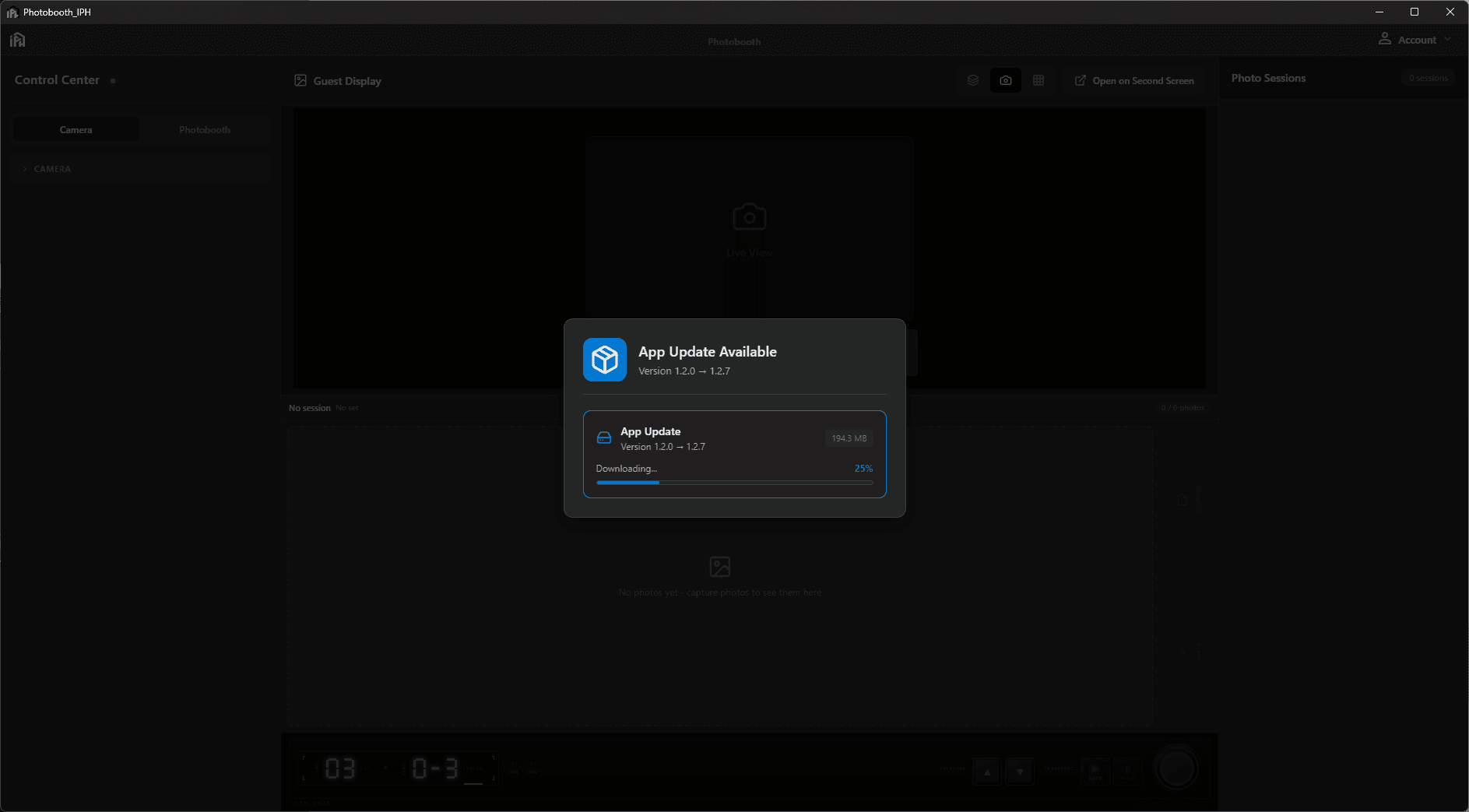
Download MSI installer from the website
Step 2: Run the Installer
Simply run the new MSI installer. It will automatically detect your existing installation and update it to the latest version.
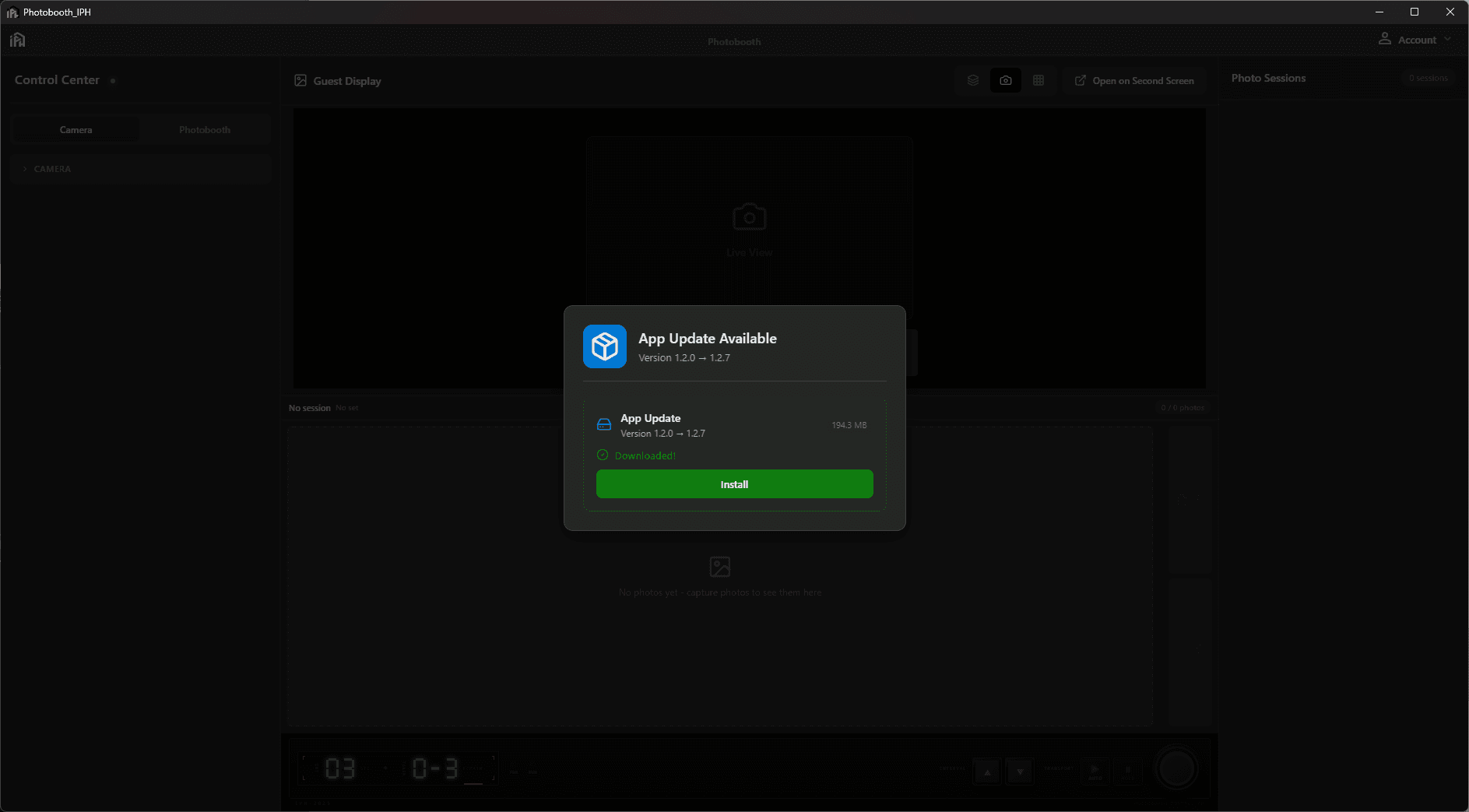
Run the MSI installer to update the application
Troubleshooting Updates
Installer won't run
Right-click the MSI file and select "Run as administrator". Make sure Windows SmartScreen isn't blocking the installation.
Update fails partway through
Close IPH Photobooth if it's running, then try running the installer again. Ensure you have sufficient disk space (at least 500 MB free).
App won't start after update
Restart your computer and try again. If the issue persists, you may need to uninstall and reinstall the application.
Need Help Updating?
If you encounter any issues while updating IPH Photobooth, our support team is here to assist you.