Getting Started
Get IPH Photobooth up and running in minutes. Follow this guide to install, configure, and start taking beautiful photos.
System Requirements
Before you begin, make sure your system meets these requirements:
Windows 10 or 11 (64-bit)
8 GB recommended (4 GB min)
250 MB for application
PTP-compatible USB camera
Download & Installation
Download the Installer
Visit our download page to get the latest MSI installer. The download includes everything you need — no separate downloads required.
Run the Installer
- 1Locate the downloaded
.msifile - 2Double-click the file to launch the installer
- 3Click "Install" when prompted by Windows SmartScreen (this is normal)
- 4Follow the installation wizard prompts
- 5Wait for the installation to complete
Launch the Application
After installation completes, launch IPH Photobooth from your Start menu:
IPH Photobooththen pressEnterConnect Your Camera
Supported Cameras
IPH Photobooth works with PTP-compatible cameras. Most modern DSLR and mirrorless cameras are supported:
Nikon support has only been tested on Z cameras. Other camera brands may function but some camera settings from the app may not work.
Follow the camera connection guide →
Step-by-step instructions for connecting Fujifilm, Canon, Sony, Nikon Z, and other PTP-compatible cameras.
Using the App
Once your camera is connected and the VM LED is green, you're ready to go. The app has two main modes: Collage Mode for designing templates, and Photobooth Mode for capturing photos.
Guest Display
OptionalConnect a second monitor to show a live slideshow of captured photos for your guests to enjoy.
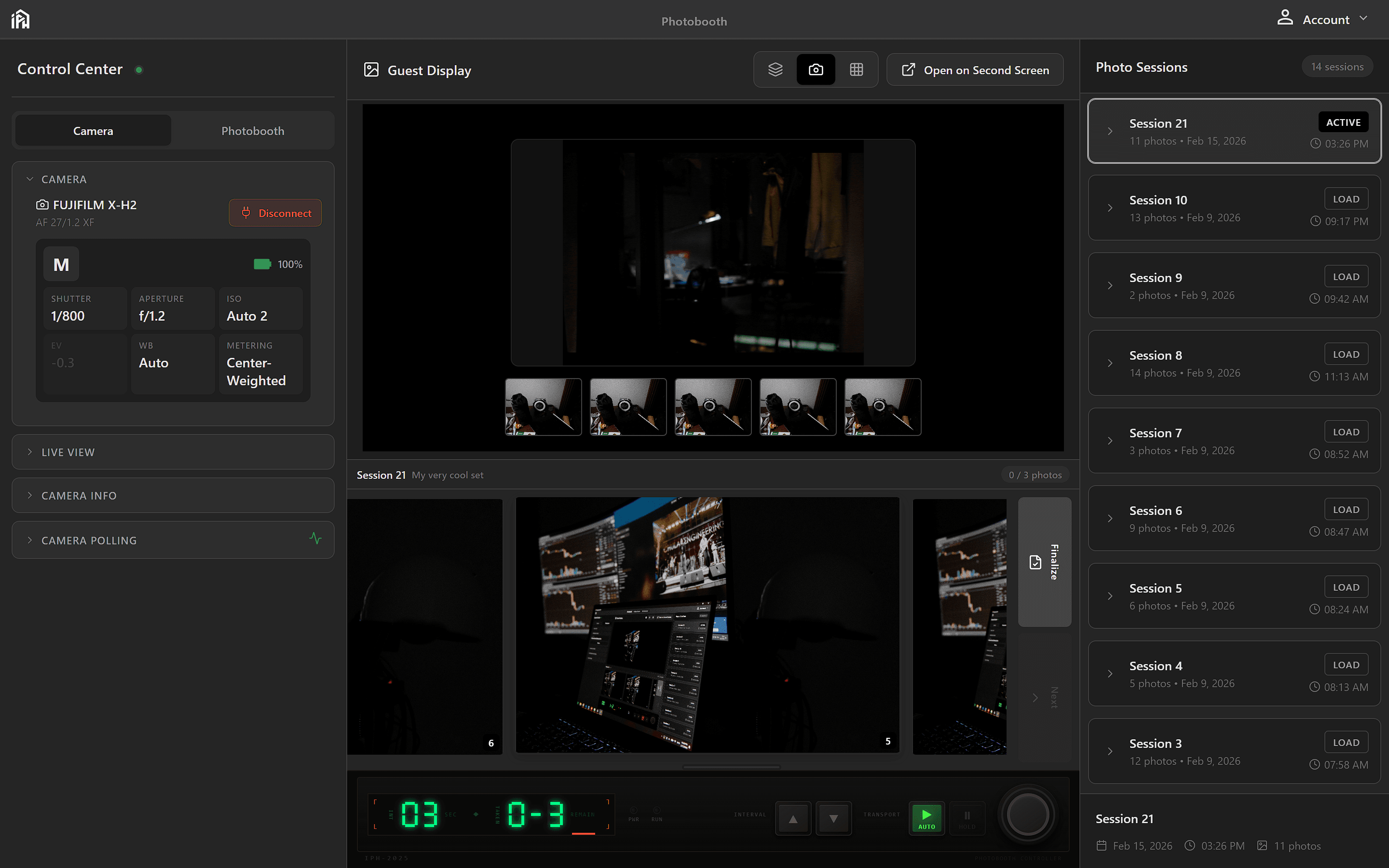
The photobooth interface — left sidebar shows camera controls, center displays the guest preview with session gallery below, right sidebar lists all photo sessions.