Photobooth
Run live photobooth sessions — capture photos with countdown timers, share instantly via QR code, and show a slideshow on a guest display.
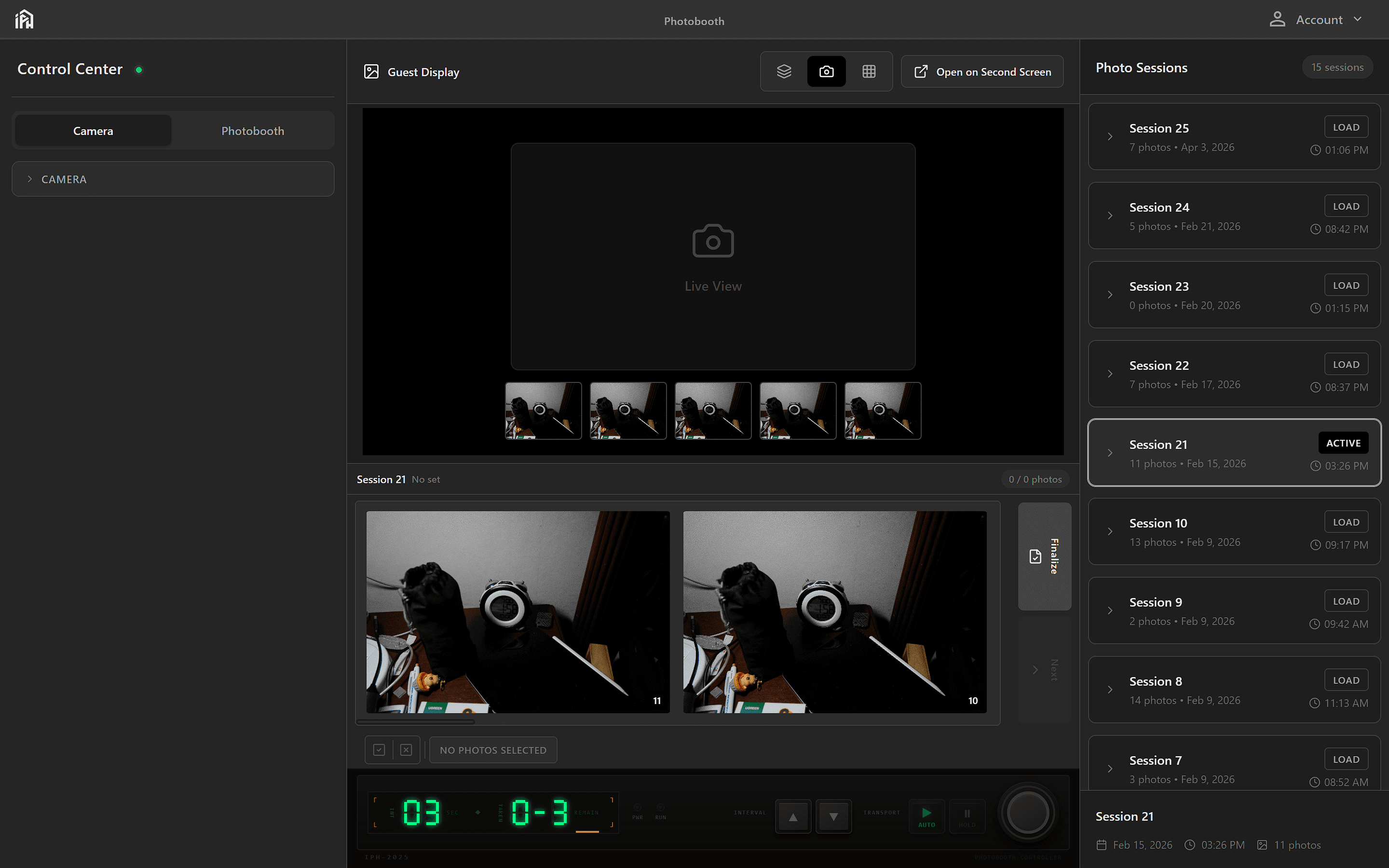
Camera controls panel — connect your camera, toggle live view, and adjust shooting settings.
Control Center Tabs
The left sidebar — called Control Center — has two tabs you'll switch between during setup. The Camera tab connects your camera; the Photobooth tab configures session behavior.
Camera Tab
Shows the CAMERA section where you connect your camera and enable live view. Once connected, the live feed appears in the center Guest Display area.
- Camera connection status
- Live view toggle
Photobooth Tab
All session configuration lives here. Set your working folder, load a collage set, configure delays, naming, QR sharing, GIF generation, and print settings before starting.
- Working Folder — where session photos are saved
- Select Set — load your collage template
- Delay Settings, Naming Scheme, QR Settings
- GIF Generation and Print Settings
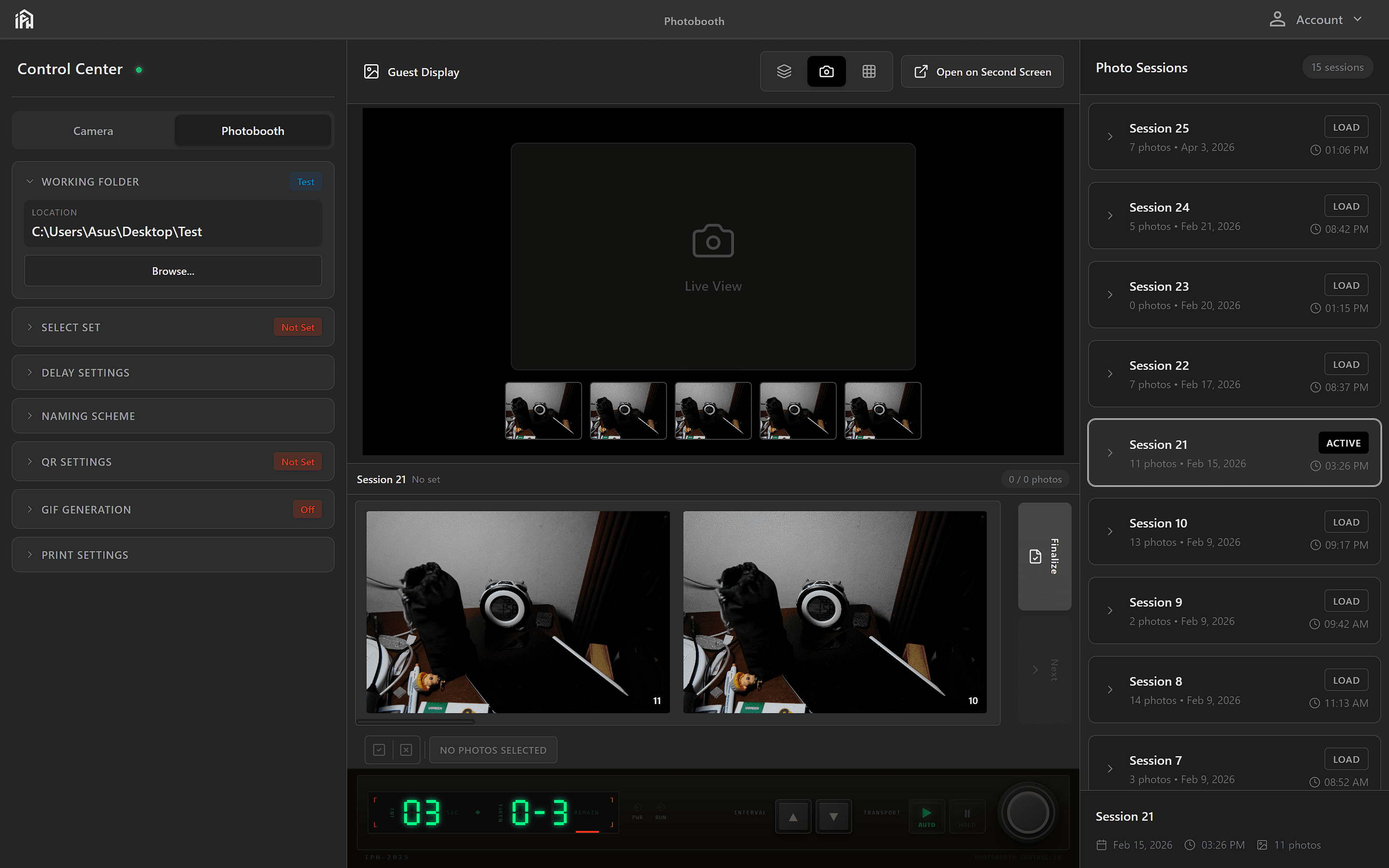
Photobooth settings — configure countdown timers, auto-capture intervals, and session preferences.
Understanding the Interface
The photobooth interface is organized into four main areas, each designed for a specific part of your workflow:
Control Center
Left sidebar with Camera and Photobooth tabs. Switch between them to connect your camera or configure session settings.
Guest Display
Center top area showing the live camera feed. Includes view controls and an "Open on Second Screen" button to send the feed to a secondary monitor.
Session Gallery
Center area below the live view. Shows the current session's captured photos as thumbnails, with a Publish button to upload and share.
Operator Interface
Bottom bar with a countdown timer, frame counter, shutter button, and photobooth auto/pause controls for running the session.
Photo Sessions
Right sidebar listing all past sessions with timestamps and photo counts. Click LOAD to restore a session, or start a new one. The active session is highlighted.
Interface Layout
Camera tab — connect & live view
Photobooth tab — all session settings
Live camera feed · thumbnail strip
"Open on Second Screen" for guests
Collage previews for active session
Publish button to upload & share
Countdown · frame counter · auto/pause · shutter
All sessions listed with dates
Active session highlighted
LOAD to restore any session
How Photos Are Stored
The photobooth uses a simple folder system to keep your photos organized. You select a working folder when setting up, and the program automatically creates numbered subfolders for each session.
Folder Structure
How the Session System Works
Think of a working folder as the event location — like "Sarah's Wedding" or "Company Party". All photos from that event go in this one folder. Within that folder, each session represents a group that comes through the photobooth — in the order they arrive. Session 001 is the first group, Session 002 is the second group, and so on. The .ptb file quietly keeps track of everything in the background.
In this section
Setting Up the Photobooth
Select a saved set, verify your camera live view, and start a session.
Taking Photos
Capture photos with live preview, countdown timer, and automatic frame placement.
QR Code Sharing
Upload photos to Google Drive and generate a scannable QR code for guests.
Guest Display
Show a live photo slideshow and QR code on a secondary monitor for your guests.