QR Settings
OptionalWhen enabled, photos are automatically uploaded to Google Drive after each capture. Guests scan a QR code to download their photos instantly.
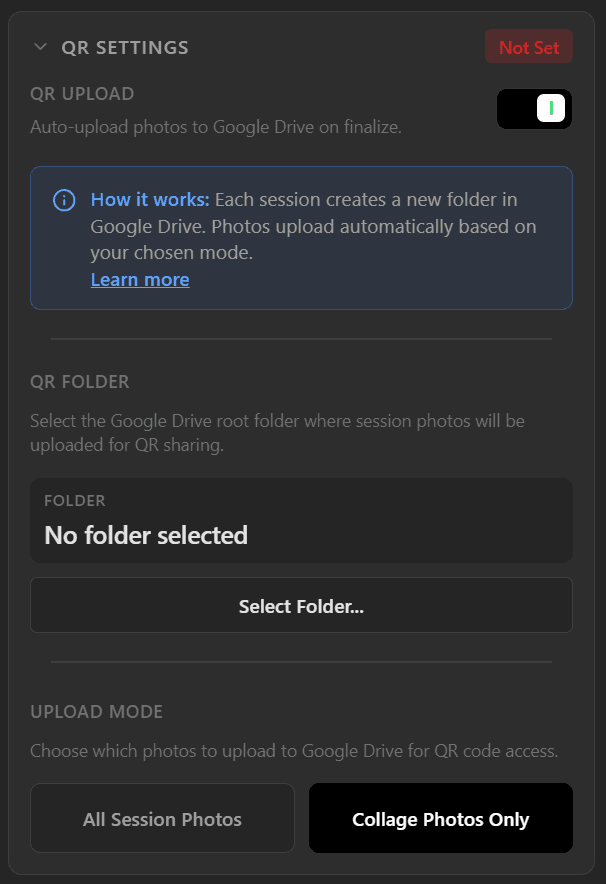
Toggle QR upload on, pick a Drive folder, and choose the upload mode.
Before you start
Two things must be in place before QR upload will activate:
A Google account signed in — see Signing In
A Google Drive base folder selected in the QR Settings panel
If either is missing, the status badge stays Not Set even with QR upload toggled on.
When you start a new session, the app automatically creates a new folder in your Google Drive named after the session. All photos for that session are stored in this folder, keeping everything organized and easy to find.
Each session generates its own unique QR code linking exclusively to that session's folder. Guests from different sessions cannot access each other's photos.
Selecting a Google Drive folder
Click Select Folder… to open the Google Drive folder browser. Navigate to the desired location and click Select Current to confirm.
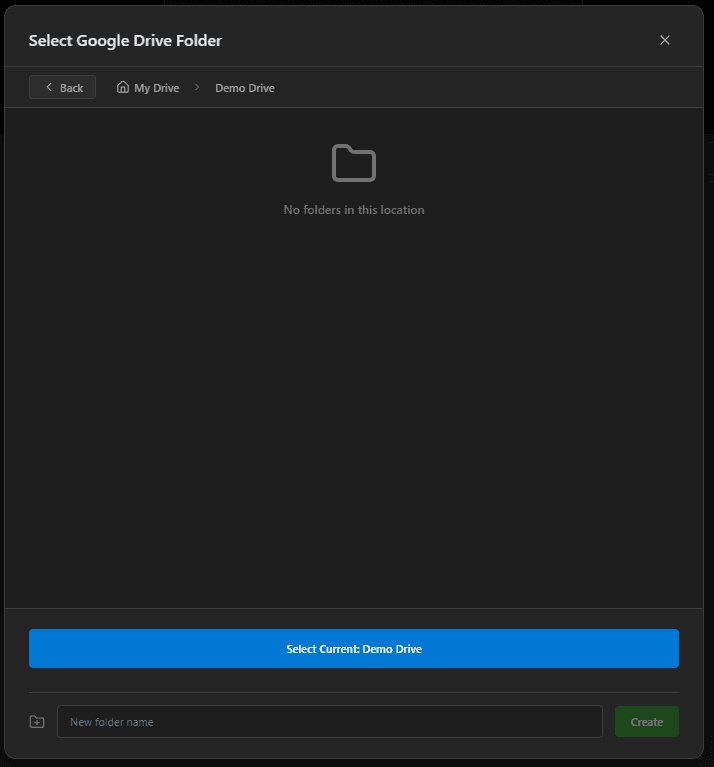
A dialog opens over the app — browse your Drive, navigate into any folder, or create a new one, then click <strong>Select Current</strong> to confirm.
Upload mode
All Session Photos
Every individual photo taken during the session uploads to Google Drive immediately after capture, alongside the collage, GIF, and video (if enabled).
Collage Photos Only
Uploads only the photos used to build the collage, plus the collage itself, GIF, and video (if enabled). Photos not included in the final layout stay on-device. Photos are only uploaded when the operator press the next button and transition to the Finalize page.