Working Folder
RequiredThe Working Folder is where all photos from your session are saved. The app creates a numbered subfolder inside it for each session automatically — you never need to manage files manually.
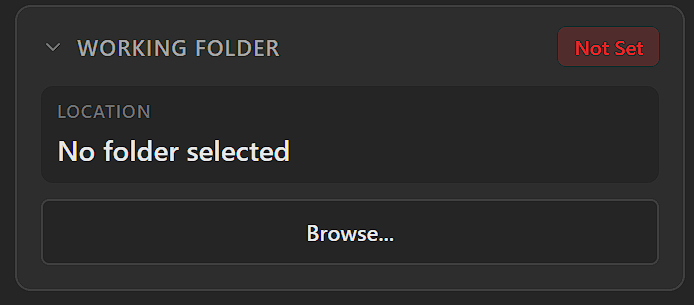
<strong>Not Set</strong> — photobooth cannot start.
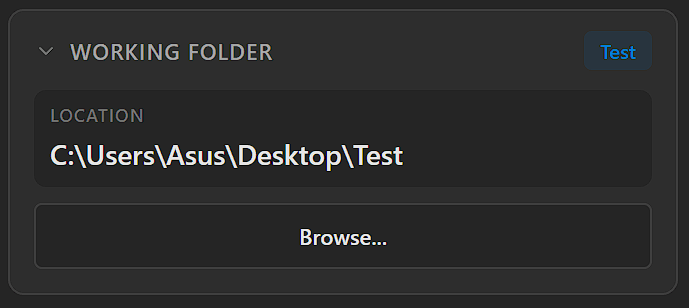
<strong>Set</strong> — folder name badge and full path shown.
Click Browse… to open a folder picker and select any folder on your computer. The selected path will appear under Location.
Once populated
After setting a folder and starting a session, the interface will load any existing photos from that folder into the Session Gallery. The working folder path remains visible in the Control Center sidebar throughout your session.
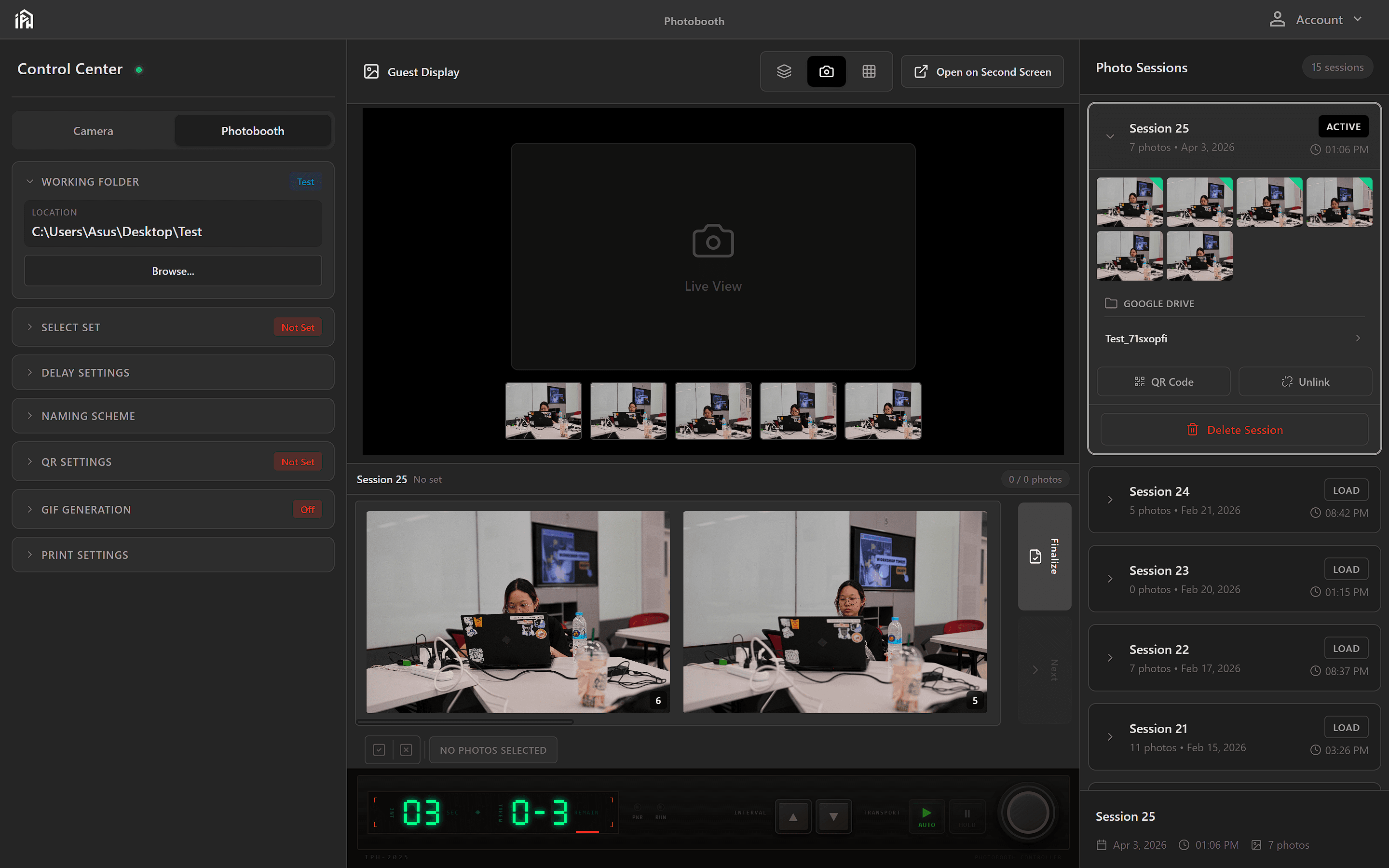
Working folder set to C:\Users\Asus\Desktop\Test — existing session photos are loaded into the gallery automatically.
Parsing warning
Occasionally when loading a folder the app may show a parsing warning. This is not common and usually resolves on its own.
- 1.Try loading the folder again — click Browse… and re-select the same folder.
- 2.If the warning persists, select a different folder or create a new empty folder and use that instead.
- 3.Advanced: locate the
.ptbfile inside the folder, open it in VS Code or any text editor, and fix the malformed JSON manually. The file is human-readable — look for missing commas, unclosed brackets, or stray characters near the end.