Setting Up
All session configuration lives in the Photobooth tab of the Control Center. Two settings are required before you can shoot; the rest are optional enhancements.
Before you start: you need at least one collage set saved in the Collage Creator. The photobooth cannot run without a set to define the photo layout.
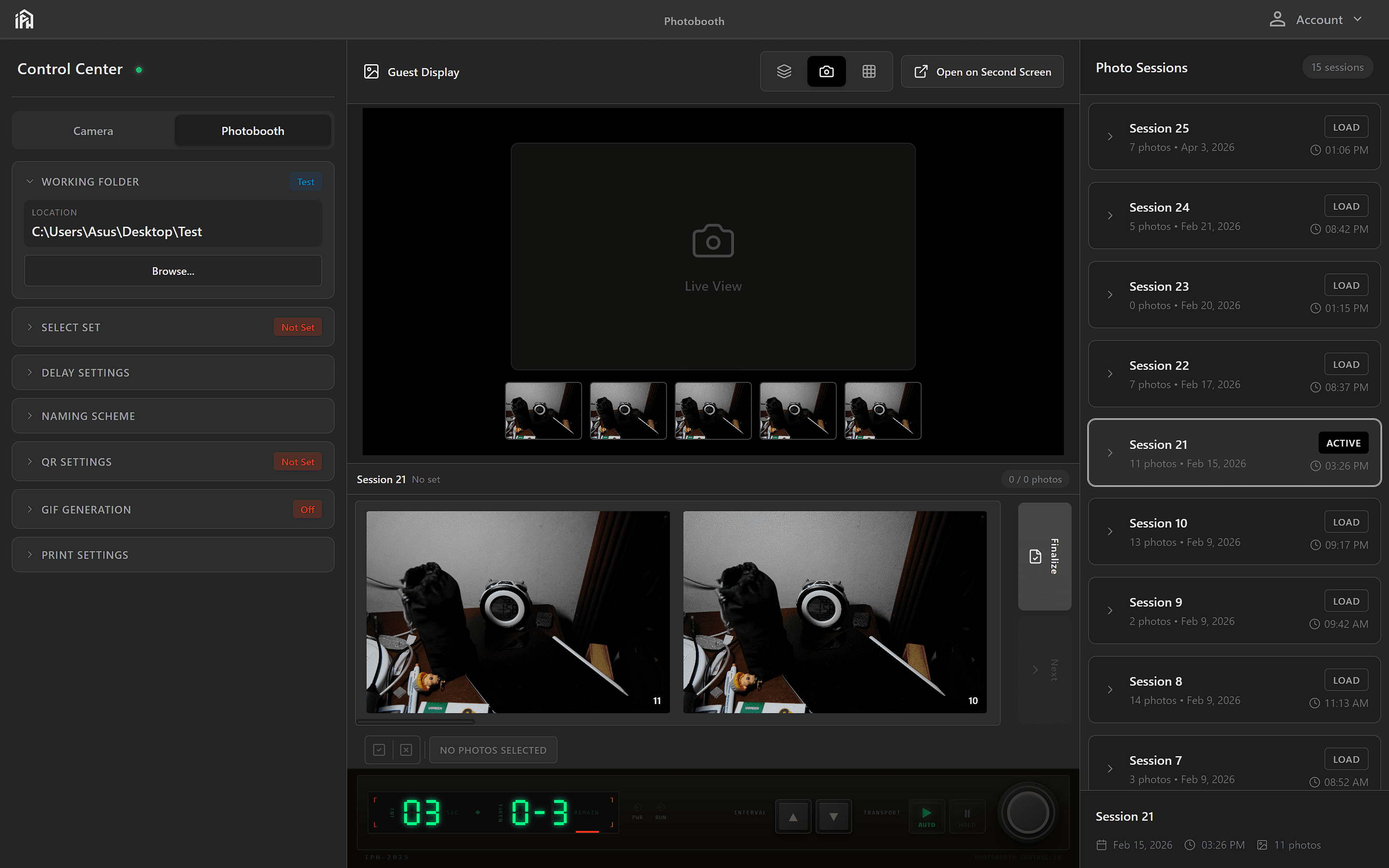
The Photobooth tab — click it in the Control Center left sidebar to access all session settings.
Required Settings
Optional Settings
Delay Settings
OptionalControls the countdown timer before each capture and the interval between shots in a multi-photo round.
Naming Scheme
OptionalDetermines how output files are named — typically a custom prefix plus an auto-incrementing number.
QR Settings
OptionalUpload completed collages to Google Drive and generate a scannable QR code guests can use to download their photos.
GIF Generation
OptionalAutomatically assemble the individual shots from each round into an animated GIF saved alongside the collage.
Print Settings
OptionalConfigure automatic printing of each collage after capture — printer selection, number of copies, and paper size.