Signing In
Connect your Google account to enable photo sharing via QR codes. Guests can then scan and download their photos instantly from Google Drive.
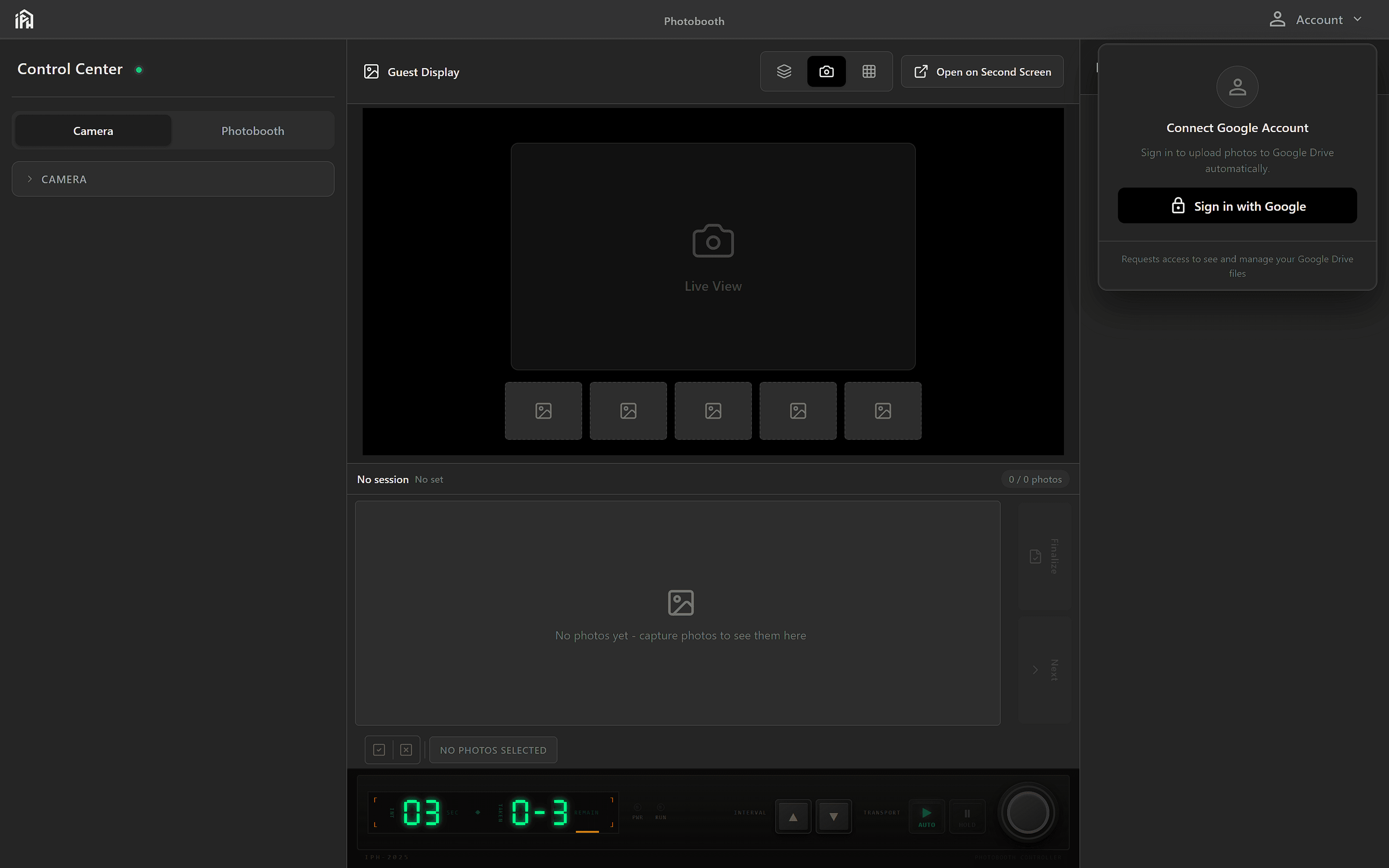
Connect your Google account from the Settings panel to enable photo sharing features.
How Authentication Works
The photobooth uses OAuth 2.0 to securely connect to your Google Account:
Click the 'Sign in' button in the top-right corner of the app
A secure Google sign-in window opens in your default browser
Review and authorize the requested permissions (Google Drive access)
Your account is connected and ready to upload photos
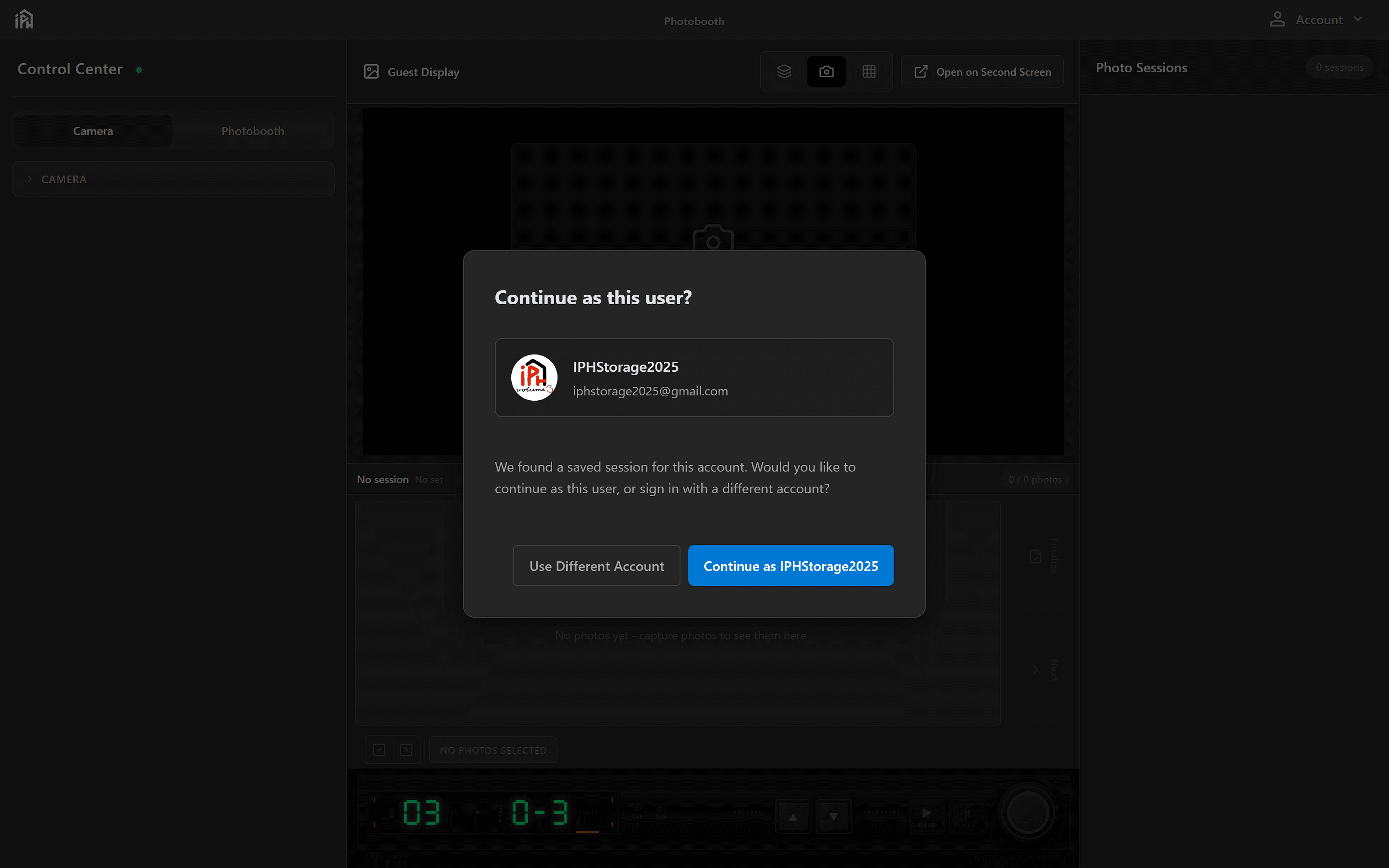
If you previously signed in and restart the app without signing out, you'll see this "Continue as" prompt. Click your account to restore the connection.
Understanding Permissions
When you sign in, Google will show what permissions the photobooth is requesting:
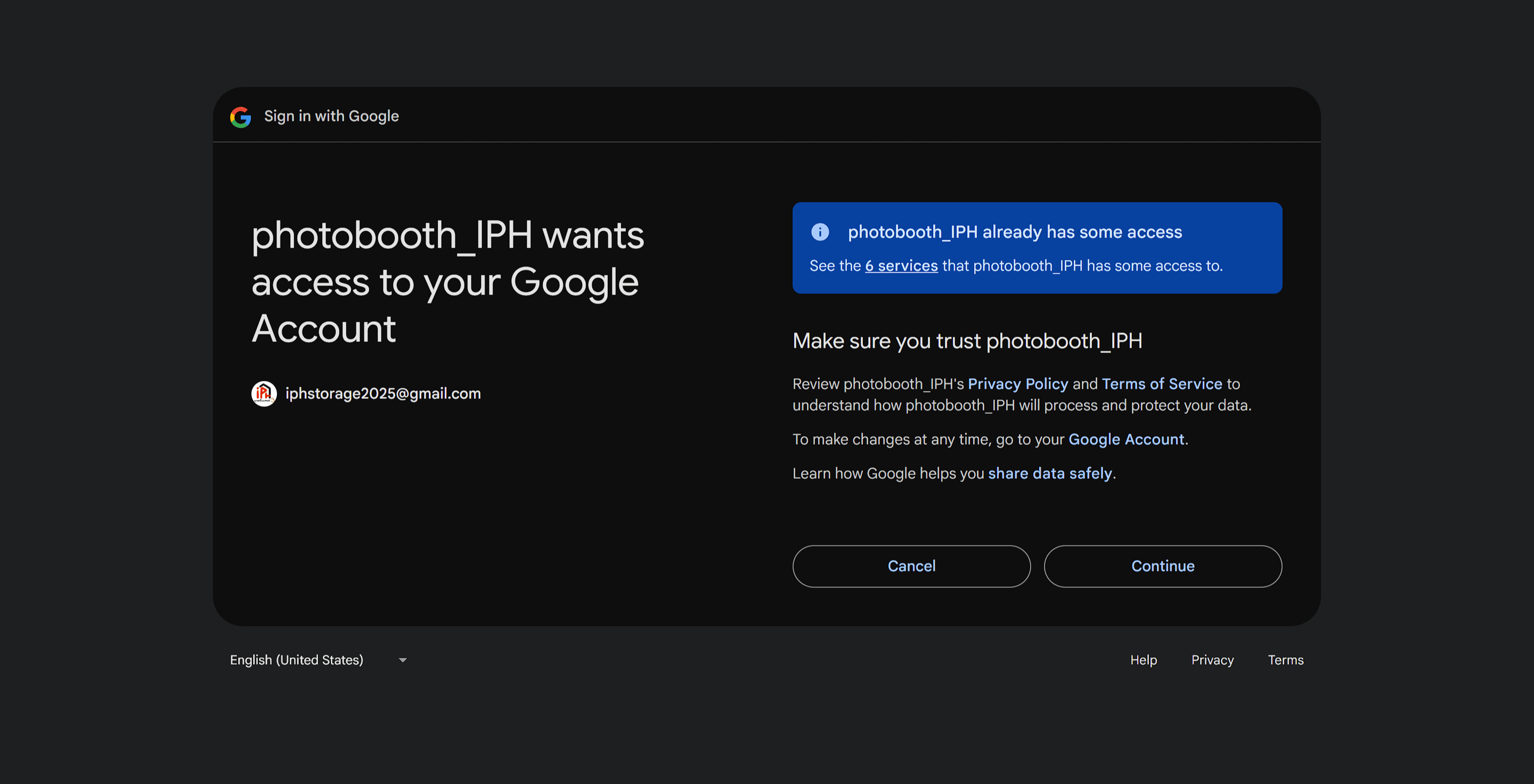
The Google permissions dialog — review the requested access, then click <strong>Continue</strong> to authorise or <strong>Cancel</strong> to abort sign-in.
View and manage Google Drive files
Required to create folders and upload photos to your Drive
Managing Your Connection
Check Connection Status
Your signed-in account email is displayed in the top-right corner when connected
Sign Out
Click the sign out button to disconnect your Google account from the app
Switch Accounts
Sign out and sign back in with a different Google account
Revoke from Google
Remove app access from your Google Account security settings anytime
Troubleshooting
Browser doesn't open
Press the open browser button in the sign-in modal. If that doesn't work, check your default browser settings. Chrome, Firefox and Edge are supported. If using a non-standard browser, try setting a different default browser temporarily.
Connection fails
Ensure you have an active internet connection.
Wrong permissions shown
Decline the permission request and try again. Make sure you're connecting to the correct application.
Already connected but shows not connected
Click 'Disconnect' and then reconnect. This can happen after app updates or if Google session expired.