Taking Photos
Capture photos with live preview, countdown timer, and automatic collage placement. The photobooth mode is designed for fast, intuitive operation during events.
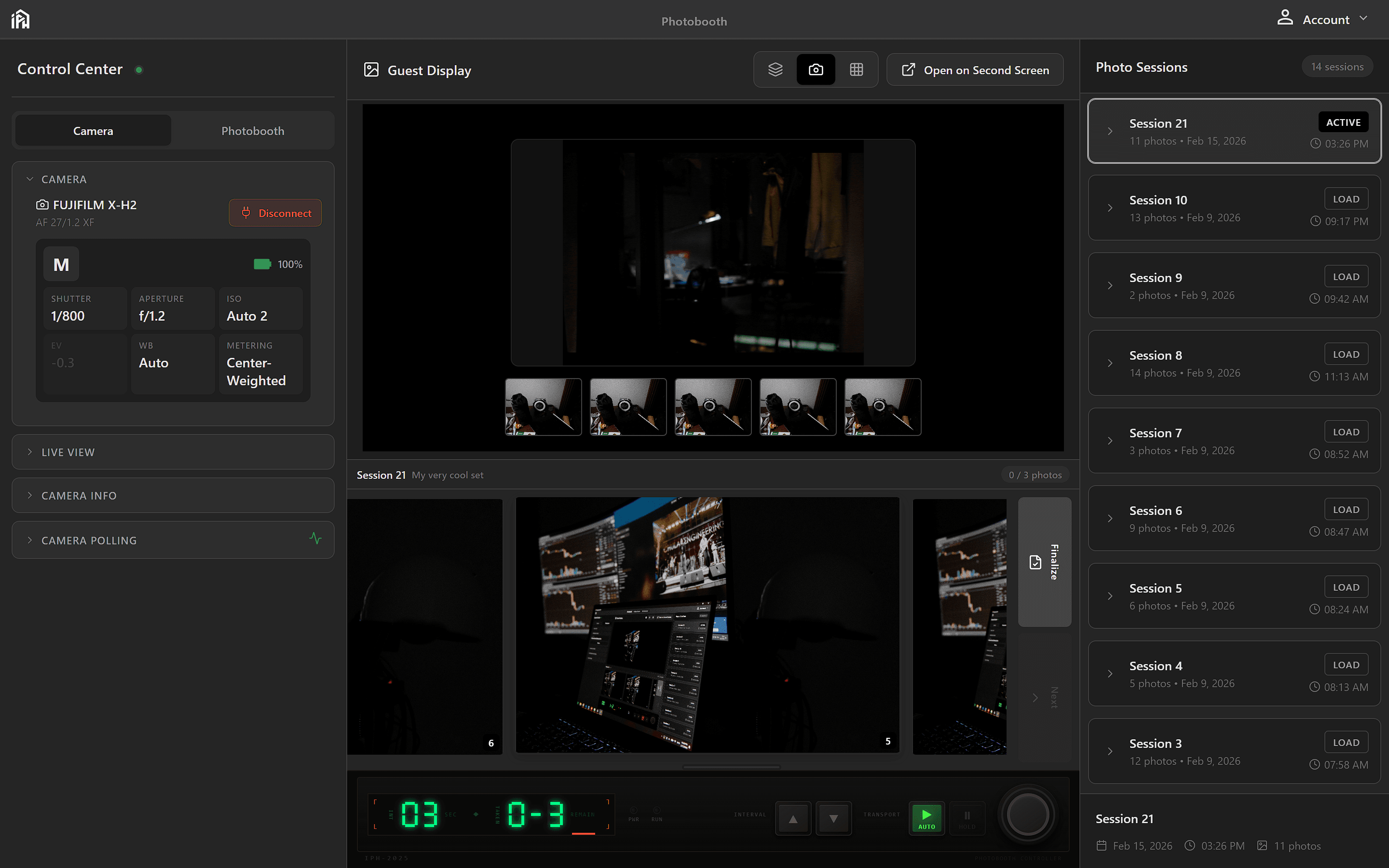
The photobooth interface — live view from your camera on the left, current session gallery on the right, and controls at the bottom.
Starting a Photobooth Session
Before you can take photos, you need to start a photobooth session with a saved set:
- 1
Select a set
Click the set selector in the bottom toolbar to choose your saved layout.
- 2
Verify live view
Ensure your camera is connected and the live preview is visible on the left.
- 3
Position subjects
Guide guests to position themselves within the frame using the live preview.
Capturing Photos
Capture Methods
Click Capture Button
Click the circular capture button in the bottom center of the screen.
Keyboard Shortcut
Press Space to trigger capture with your keyboard.
Countdown Timer
When you trigger a capture, a countdown timer gives guests time to prepare:
- Large numbers display on both your screen and the guest display
- Default countdown is 3 seconds (configurable in settings)
- Flash effect appears when photo is captured
After Capture
Once a photo is captured:
- Photo appears in the current session gallery on the right
- Guest display shows the captured photo briefly
- Photos automatically fill the frames in your set (left to right, top to bottom)
- Live view resumes automatically for the next shot
Managing Session Photos
The session gallery on the right shows all photos from the current session. You can:
View Full Size
Click any photo to view it at full resolution
Remove Photos
Delete unwanted photos from the session
Reorder Frames
Drag photos to change their frame positions
Print or Export
Print individual photos or export to file
Tips for Great Photos
Good Lighting
Ensure even lighting on subjects' faces for best results
Frame Spacing
Leave space around subjects if your frames have borders
Test Shots
Take test photos before the event to verify positioning
Background
Use a simple, uncluttered background for cleaner photos