Saving & Using Sets
Once you've configured your canvas, frames, backgrounds, and overlays, save your work as a named set. You can create multiple sets for different events or styles.
Saving a Set
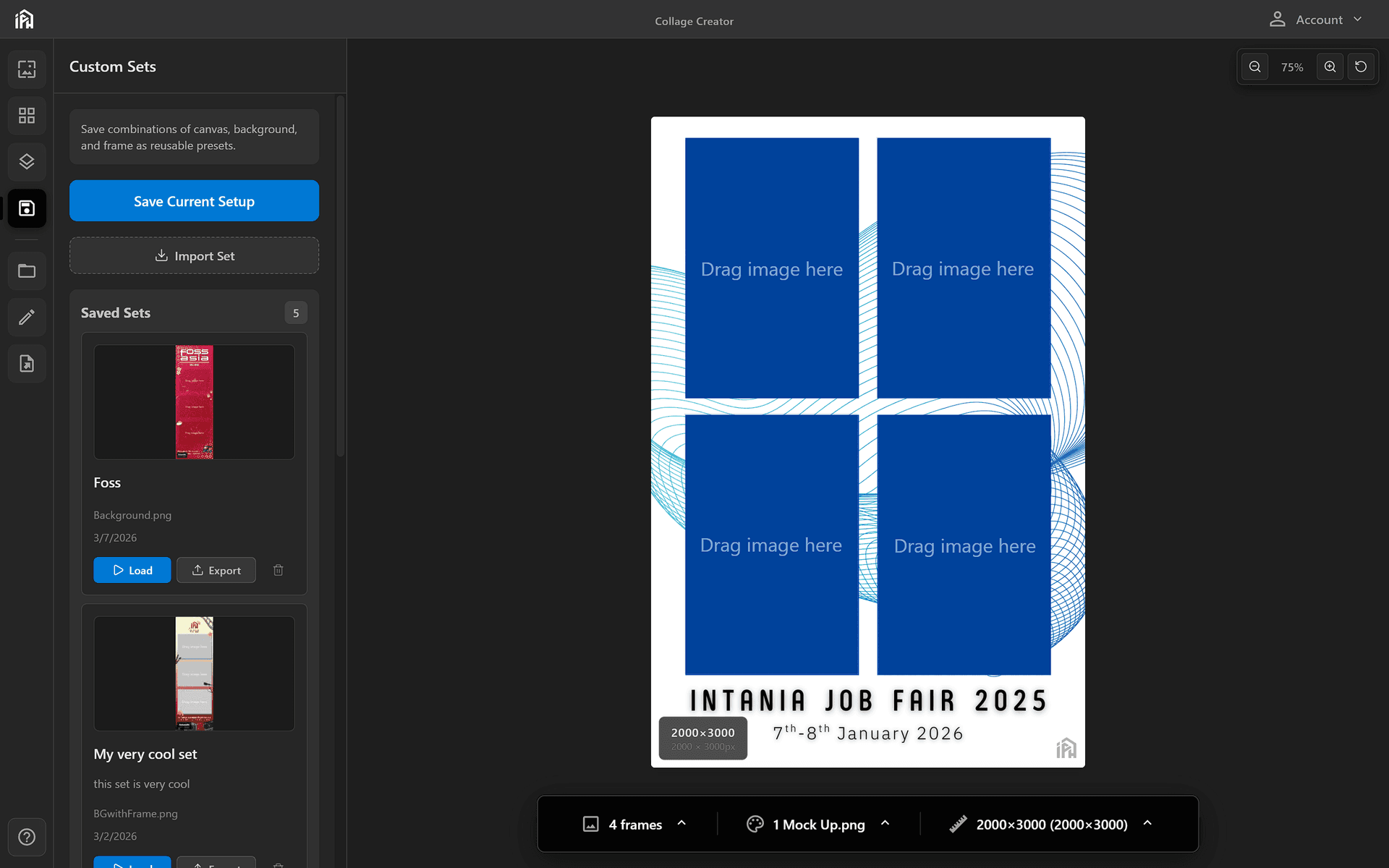
The Custom Sets panel — click <strong>Save Current Setup</strong> to save your current canvas, frame, and background as a named set. Saved sets are listed below with thumbnail previews and <strong>Load</strong> / <strong>Delete</strong> actions.
Save your set
Click Save Current Setup in the Custom Sets panel. Give your set a name and optional description — the modal shows a Current Configuration summary of the canvas size, frame, and background being saved.
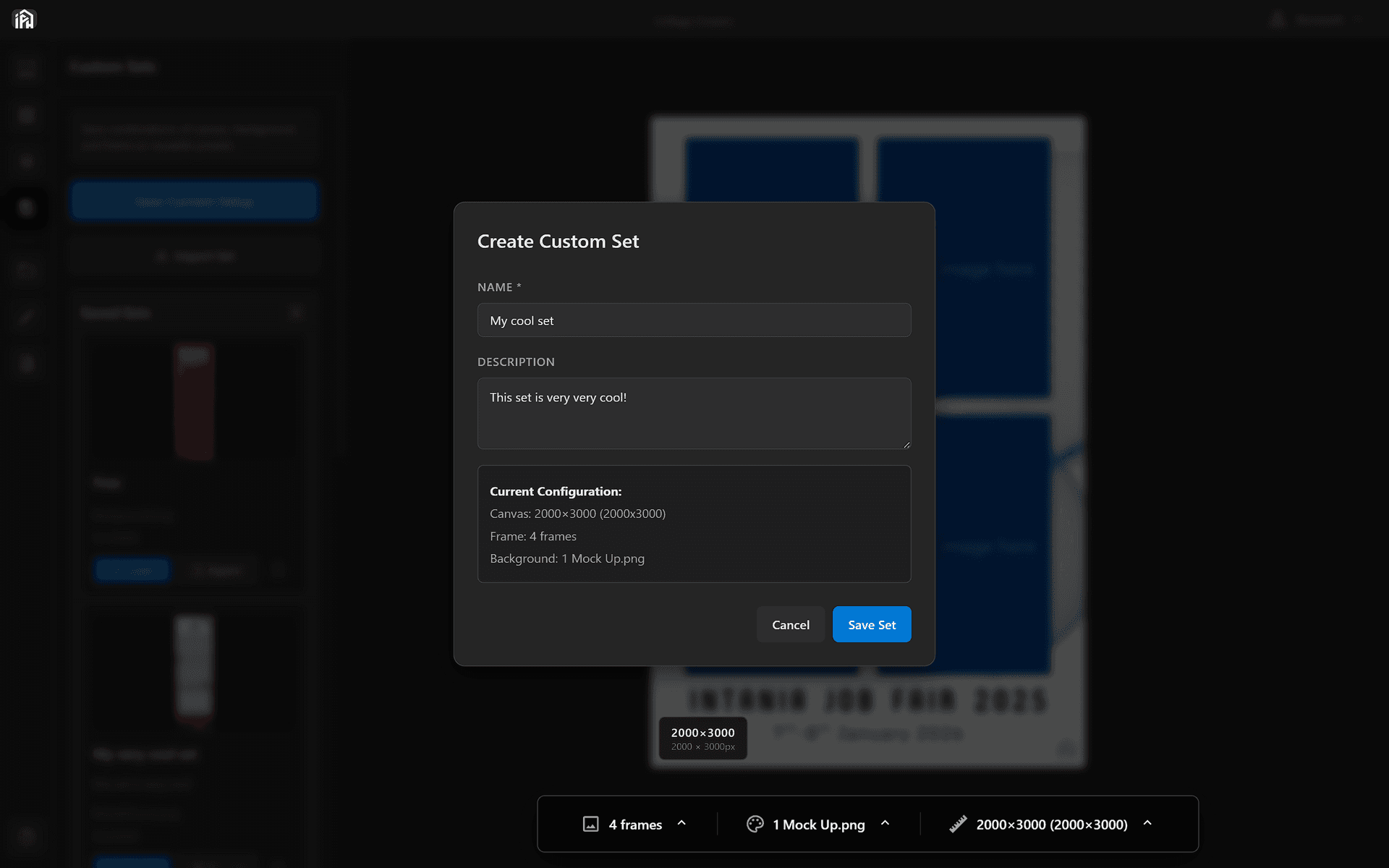
Enter a <strong>Name</strong> and optional <strong>Description</strong>. The <strong>Current Configuration</strong> summary shows the canvas size, frame, and background that will be saved. Click <strong>Save Set</strong> to confirm.
Start your photobooth session
Switch to Photobooth Mode. Guest photos will be automatically placed into the frame cutouts defined by your set.
Exporting & Importing Sets
Sets can be exported as .ptbs files and shared or imported on another machine — useful for backing up your work or moving sets between computers.
Exporting a set
Open the Custom Sets panel, find the set you want to export, and click Export. Choose a location to save the .ptbs file — the filename defaults to your set name.
Importing a set
Click Import Set in the Custom Sets panel and select a .ptbs file. The set will be added to your saved sets list and is immediately ready to use.
A .ptbs file is fully self-contained — all assets including custom images and fonts are bundled inside as base64. The imported set will look identical on any machine with no additional files needed.