Additional Tabs
Reference for the additional panels in the Collage Creator — Working Folder, Edit, and Export.
The tabs covered here — Working Folder, Edit, and Export — are only used when working with collages as standalone exports. They are not part of the photobooth session workflow. If you are setting up for a photobooth session, you only need to save a set and start shooting.
Working Folder
Import a folder of images to browse and drag into frames
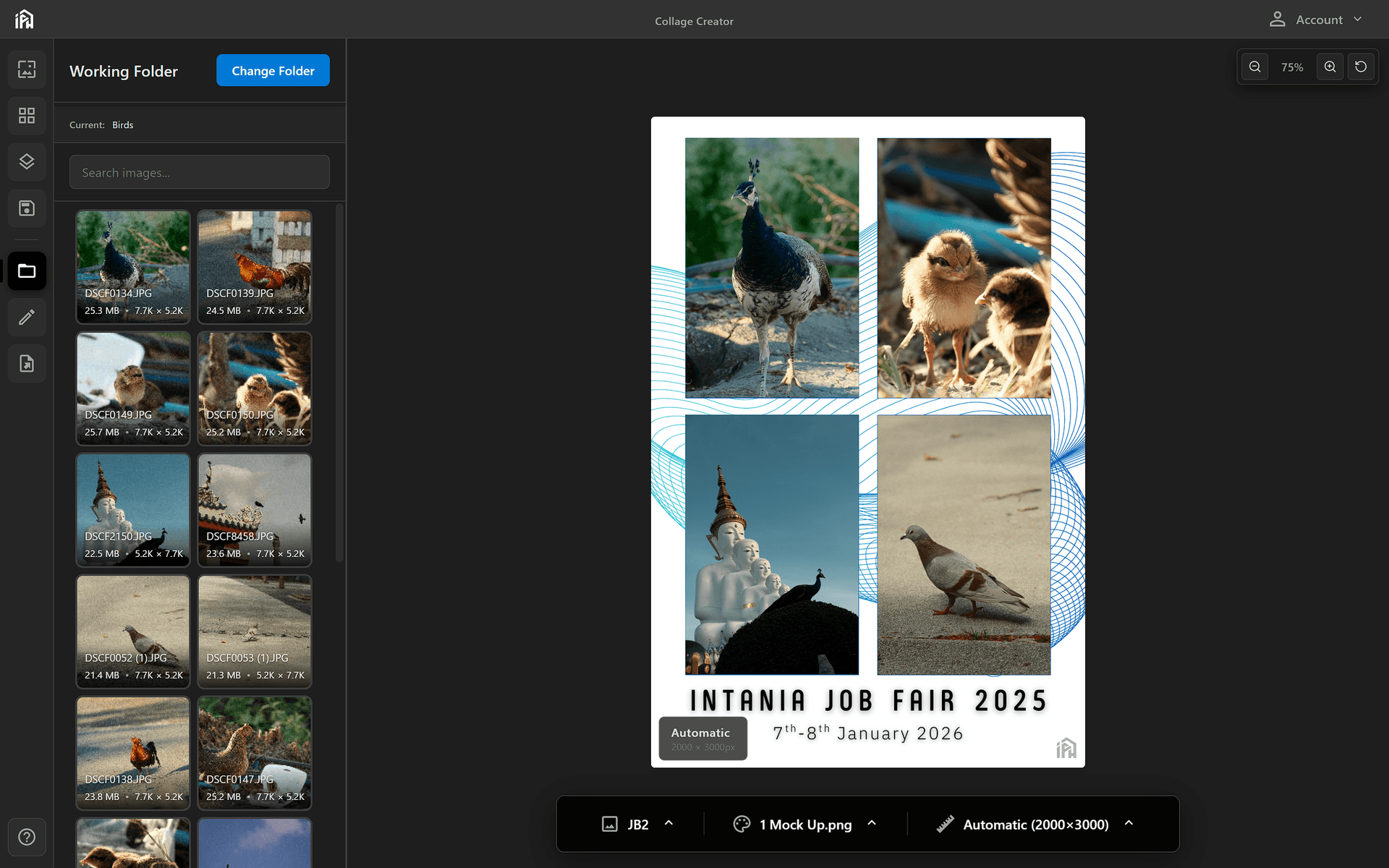
Click <strong>Change Folder</strong> to point to a local folder of images. All photos appear as a searchable grid, ready to drag directly into frames on the canvas.
Select a local directory. All images in that folder load into the panel immediately.
Use the search bar to filter photos by filename.
Drag any thumbnail from the panel directly onto a frame on the canvas.
Use the working folder to test your layout with real photos before your session.
Edit Tab
Fine-tune photos inside frames — activates when a frame containing a photo is selected
The Edit tab only becomes active when you click on a frame that already has a photo in it. It gives you precise numeric control over the photo's appearance — useful as an alternative to the on-canvas drag handles, which you can still use for resizing and moving.
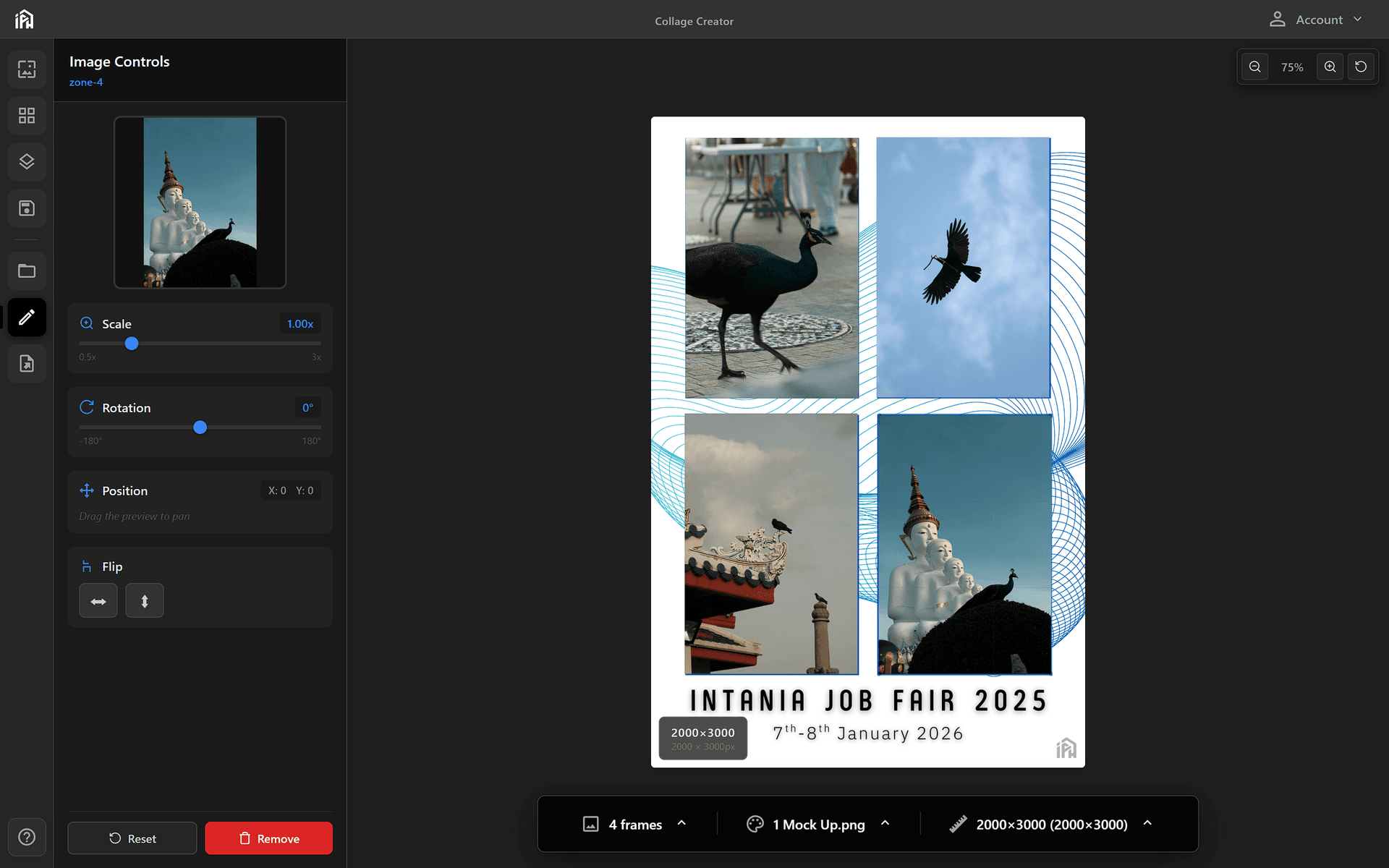
Adjust <strong>Scale</strong>, <strong>Rotation</strong>, and <strong>Position</strong> with sliders, or use <strong>Flip</strong> to mirror the image. <strong>Reset</strong> restores defaults; <strong>Remove</strong> clears the photo from the frame.
Zoom the photo in or out within its frame cutout using the scale slider.
Rotate the photo clockwise or counter-clockwise in degrees.
Nudge the photo's X and Y position, or drag the preview thumbnail to pan within the frame.
Mirror the photo horizontally or vertically with the flip buttons.
Export Tab
Save the current collage as a full-resolution PNG file
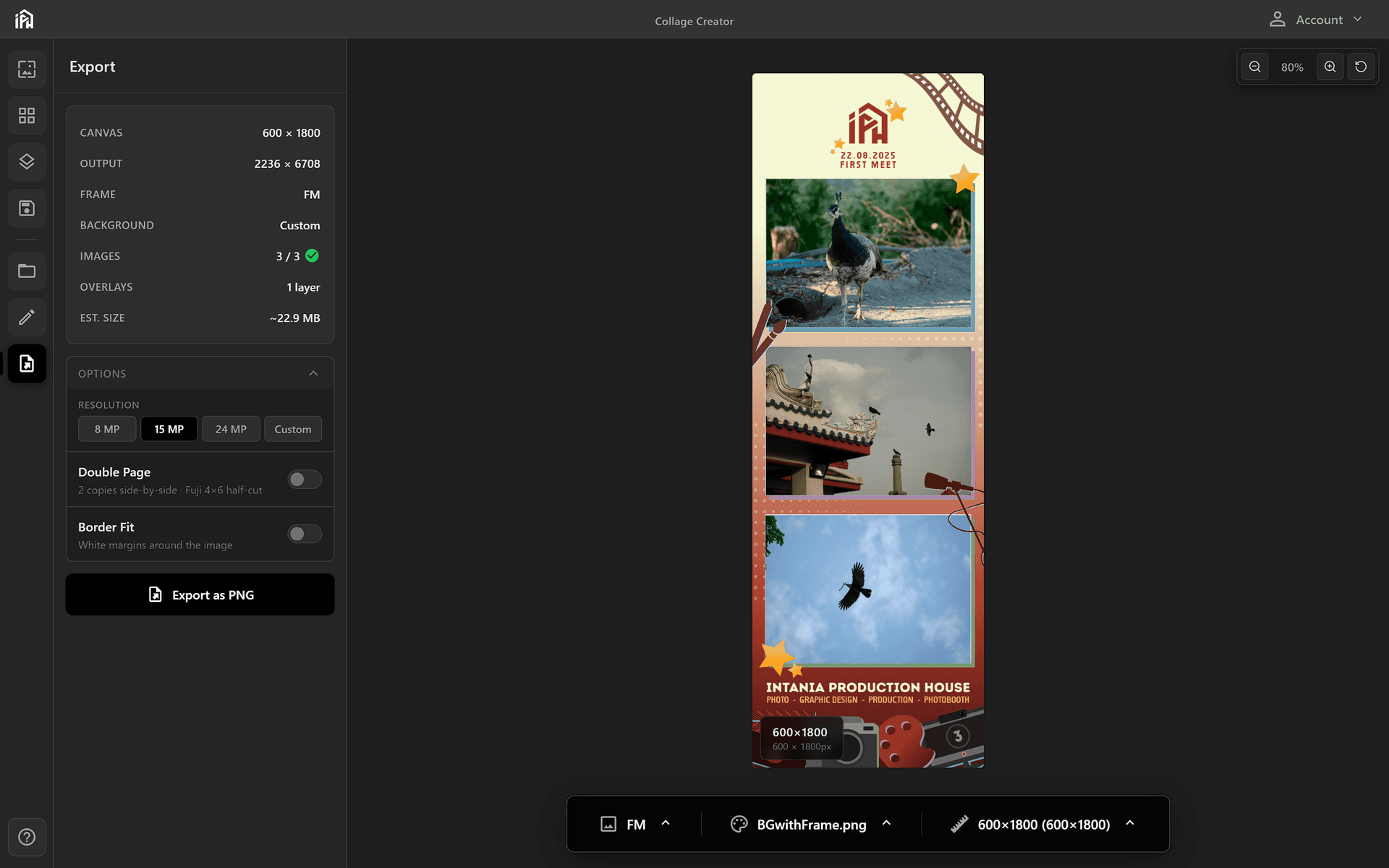
The Export panel shows the current canvas size and active frame — click <strong>Export as PNG</strong> to save the full-resolution collage to your computer.
Base canvas size.
Exported resolution — scales up based on the MP setting.
Frames filled with photos. Green check means all frames are ready.
Number of overlay layers included.
Approximate PNG file size.
Options
8 MP, 15 MP, 24 MP, or Custom. 15 MP is the default and suits most prints — higher settings increase file size.
Exports two copies side-by-side. For Fuji 4×6 half-cut printing — the printer splits the sheet, producing two identical prints.
Adds white margins around the image. Prevents cropping when the print aspect ratio doesn't exactly match the canvas.