Adding Frames
Frames define the cutout zones where guest photos will appear. You have full control over their shape, size, and position on the canvas.
Quick Start: Create Your First Frame
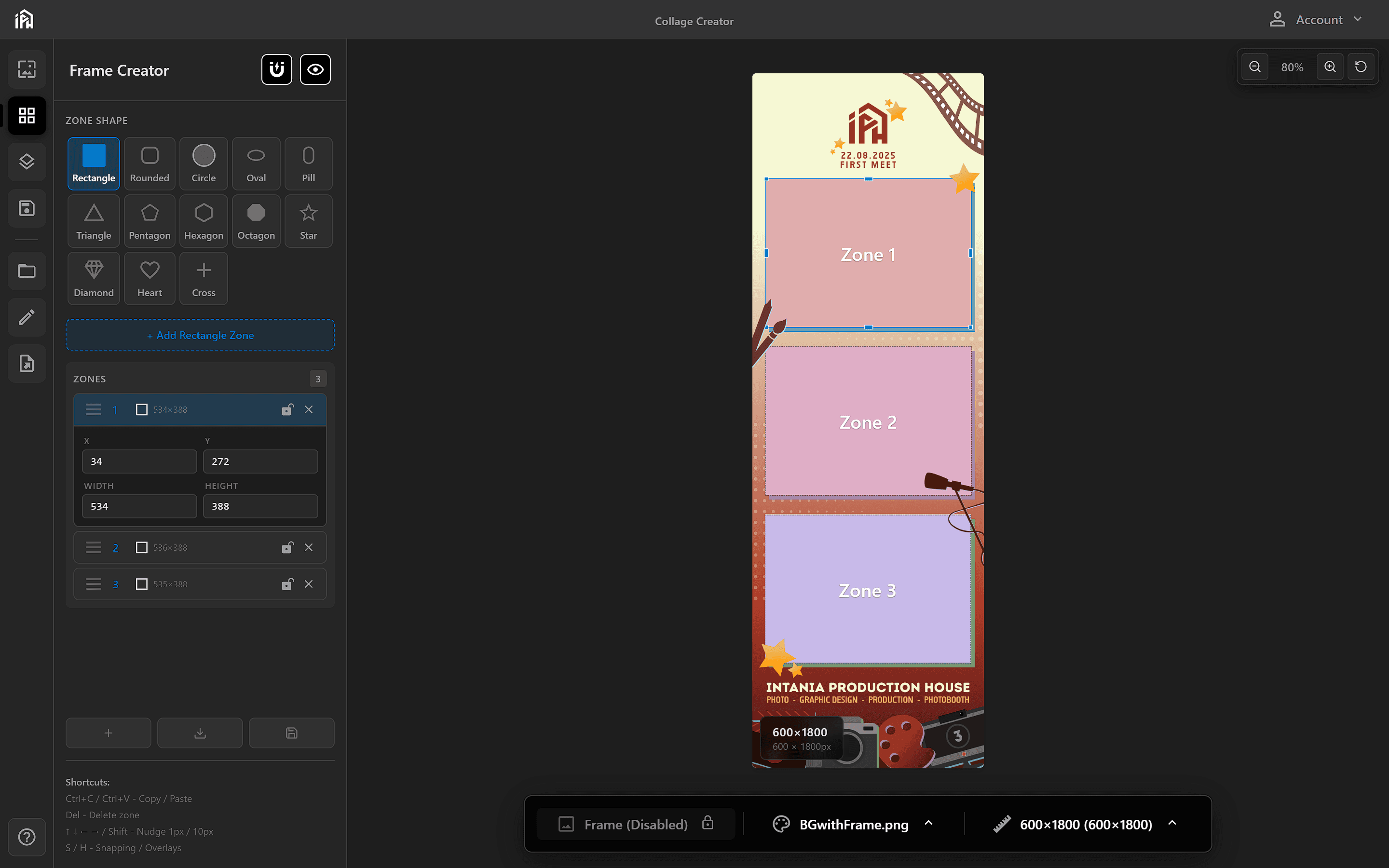
Select frame shapes from the left panel (Rectangle, Rounded Rectangle, Circle, Square), then set exact dimensions (Width × Height) and position (X, Y) using the bottom toolbar.
If you have a frame already selected, clicking the Frame Creator tab will load that frame into the editor, allowing you to modify its layout, shapes, and dimensions.
Frame Options
Choose from rectangular, rounded, circular, and other frame shapes to match your event theme.
Set the exact width and height for each frame cutout independently.
Drag and place frames anywhere on the canvas. No grid restrictions.
Add as many photo cutouts as you need for your layout.
Grab the three-line drag handle to reorder frames — drag up to place above, down to place below other frames.
Toolbar Controls
Toggle magnet icon for snap-to-grid alignment.
Toggle overlays on canvas. See Adding Overlays.
Prevent accidental movement. Look for the "locked" indicator.
Saving Frames
The Frame Creator toolbar has three buttons for managing your frames — use them to start fresh, load a previously saved frame, or save your current work.
Click + to clear canvas and start fresh
Click download icon to load a saved frame
Save, Save & Apply, or Cancel
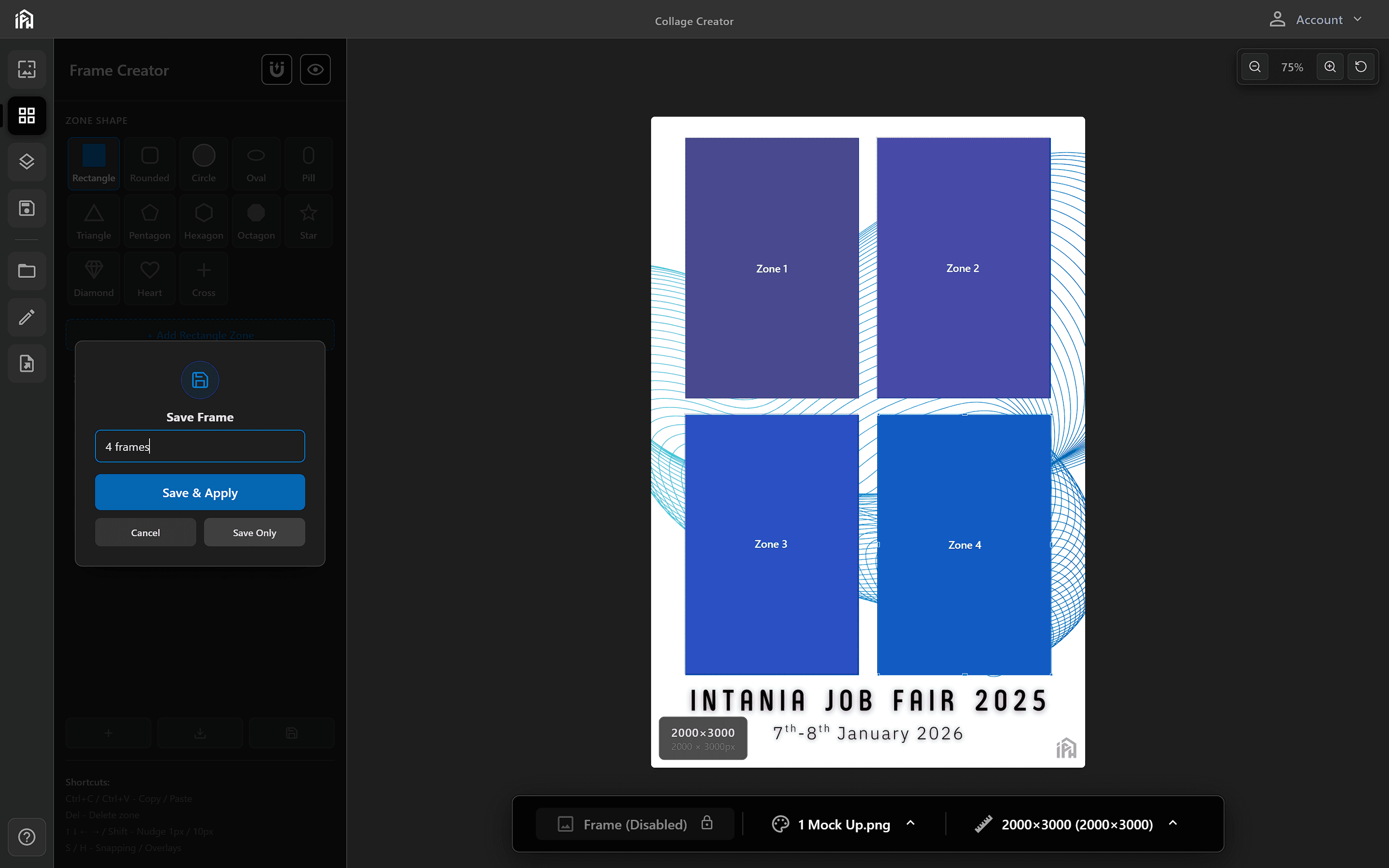
The Save Frame modal — enter a name, then choose Save to store it, Save & Apply to save and immediately use it, or Cancel to close without saving.
Selecting a Frame for Your Session
After creating and saving your frames, close the Frame Creator tab then click the frame icon in the bottom toolbar to select which frame configuration to use for your photobooth session.
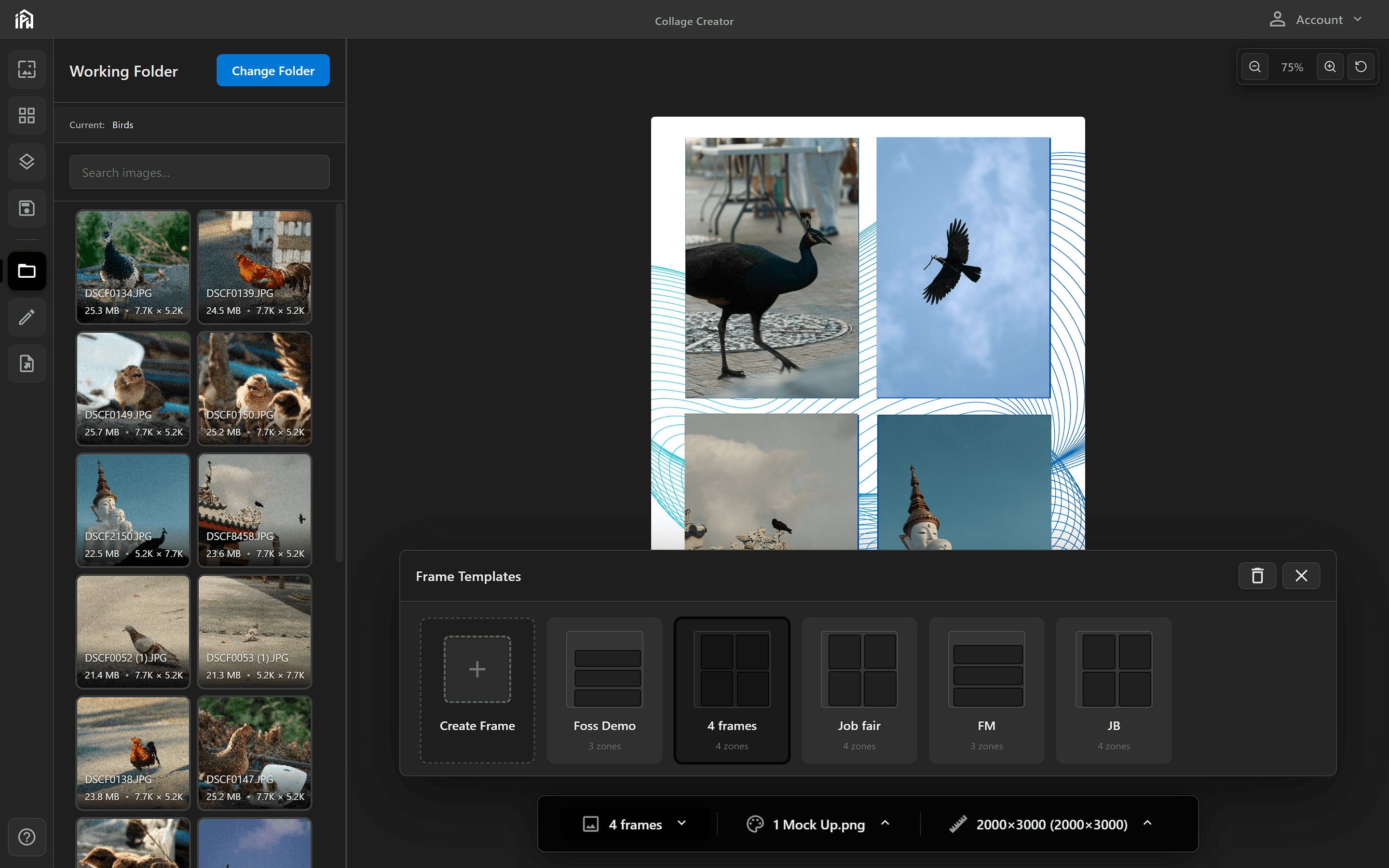
Browse your saved frame configurations and click to select the one you want to use.
During a photobooth session, guest photos are automatically placed into each frame cutout in order. The number of frames determines how many photos are taken per session.