Adding Overlays
Overlays are transparent PNG images that add decorations, branding, or borders to your collage — placed above or below the photo frames.
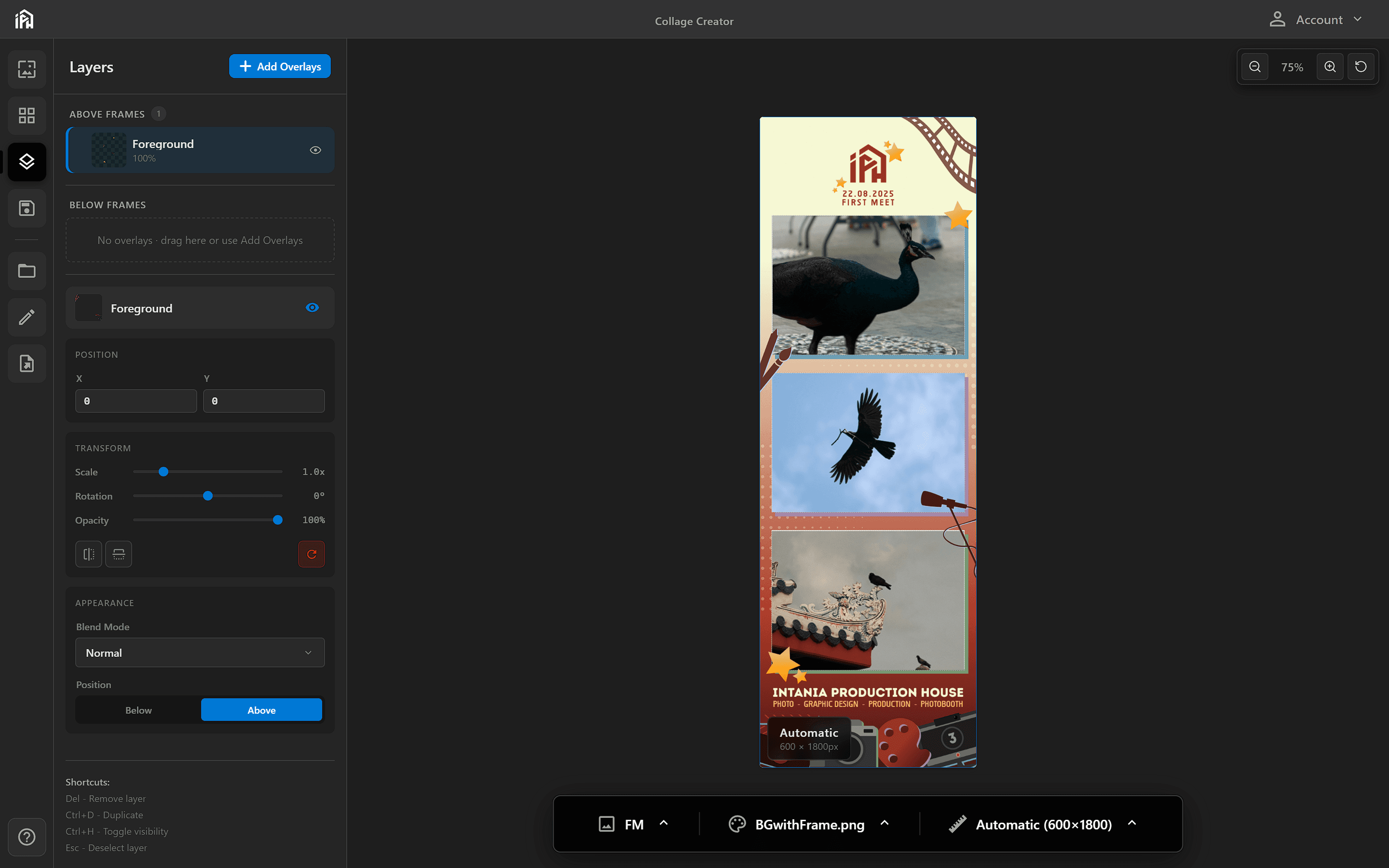
The Layers panel lets you manage overlays — adjust position, scale, rotation, opacity, and choose whether they render above or below the frames. Click on the overlay name to rename it.
Positioning Overlays
Each overlay sits in one of two sections in the Layers panel. Drag it between Above Frames and Below Frames, or use the Above / Below buttons at the bottom of the panel.
Renders on top of everything — including photos. Best for borders, watermarks, and branding that should always be visible.
Renders behind the frames but above the background. Use for subtle textures or decorative elements that sit behind the photos.
Layer Properties
Set X/Y coordinates, scale, rotation, and opacity to precisely place each overlay.
Choose how the overlay blends with layers below (Normal, Multiply, Screen, etc.).
Click on the overlay name in the Layers panel to rename it for easier identification.
Click the + Add Overlays button at the top of the Layers panel to upload new PNG overlays.
Toggle overlay visibility with the eye icon to preview your collage without specific layers.