Collage Creator
Adding Backgrounds
The background fills the entire canvas behind your frames and photos. It sets the visual theme of your collage.
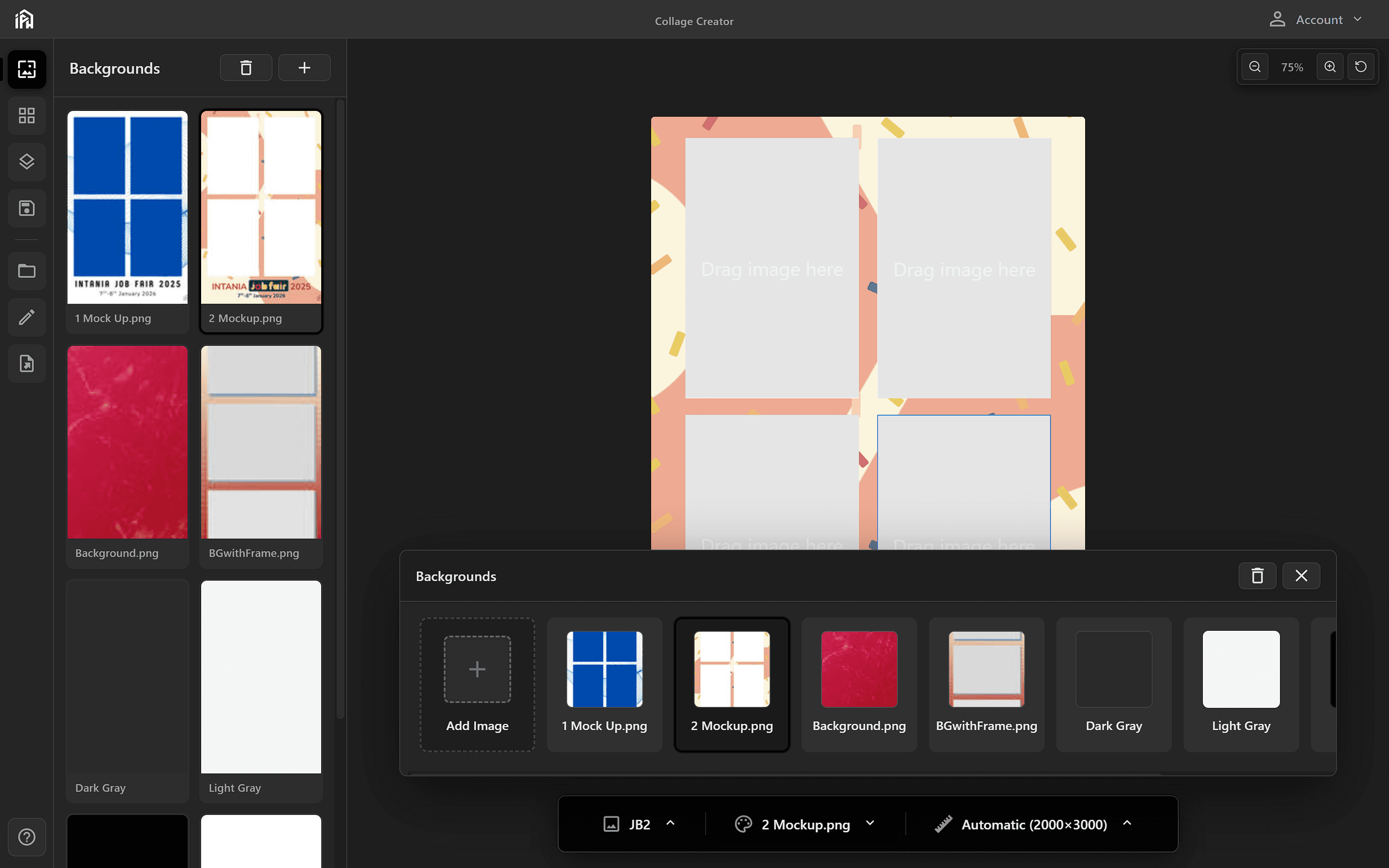
The Background section in the frame selector — click <strong>Add Image</strong> or drag and drop an image directly onto the Background button to set your canvas background.
Adding a Background
- Click Add Image when the Background section is open
- Or drag and drop directly onto the Background button
PNG, JPG
Adjusting Position
- Click to select, then drag to scale and position
- Drag on the canvas to move the background around
- Background can be larger/smaller than canvas for creative effects
Want the canvas to match your background?
Enable the Auto toggle in the canvas settings to automatically size the canvas to your background image. See Auto Canvas Matching for details.